🔴 wine-crossover-26.1.0
This Wine build is only for Eternal Return. It is patched specifically for Eternal Return, so it is not compatible with HoYoverse games.
HoYoverse games are compatible with the WineHQ-based Wine builds provided by BDIH. However, there may be small performance differences depending on the version you choose.
🔴 wine-crossover-26.1.0
This Wine build is only for Eternal Return. It is patched specifically for Eternal Return, so it is not compatible with HoYoverse games.
🟢 wine-winehq-11.11
Global versions of Honkai: Star Rail, Genshin Impact, and Zenless Zone Zero are compatible.
🟢 wine-winehq-11
Global versions of Honkai: Star Rail, Genshin Impact, and Zenless Zone Zero are compatible.
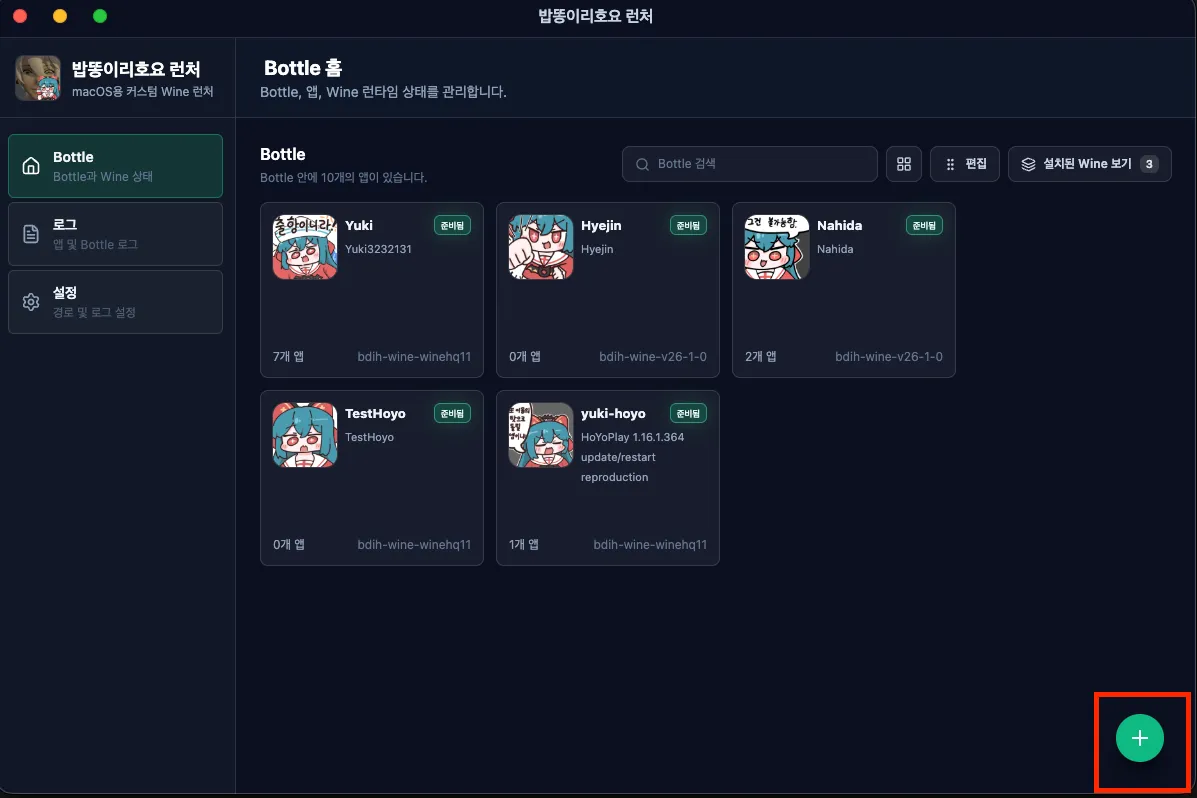
Click the + button in the lower-right corner to create a Bottle.
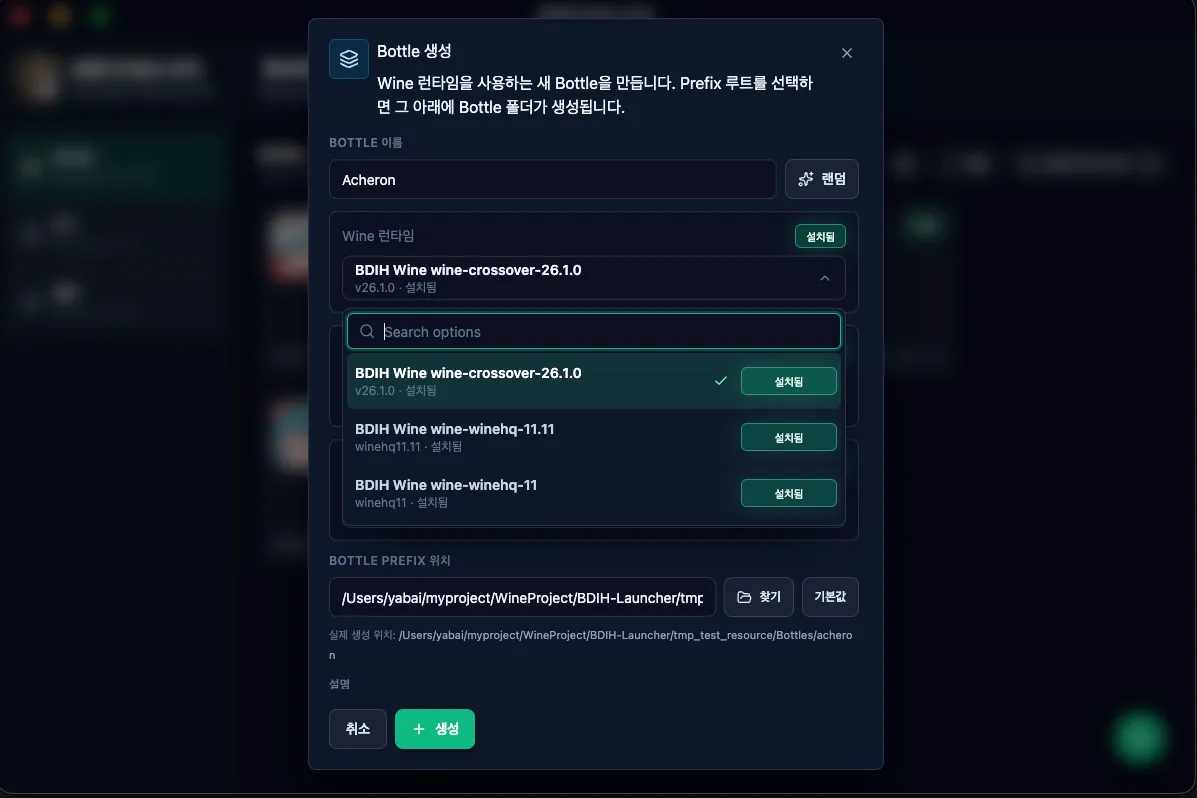
Select the Wine build you want. DXMT and Jadeite have no alternatives, so download the defaults. Then click Create to create the Bottle.
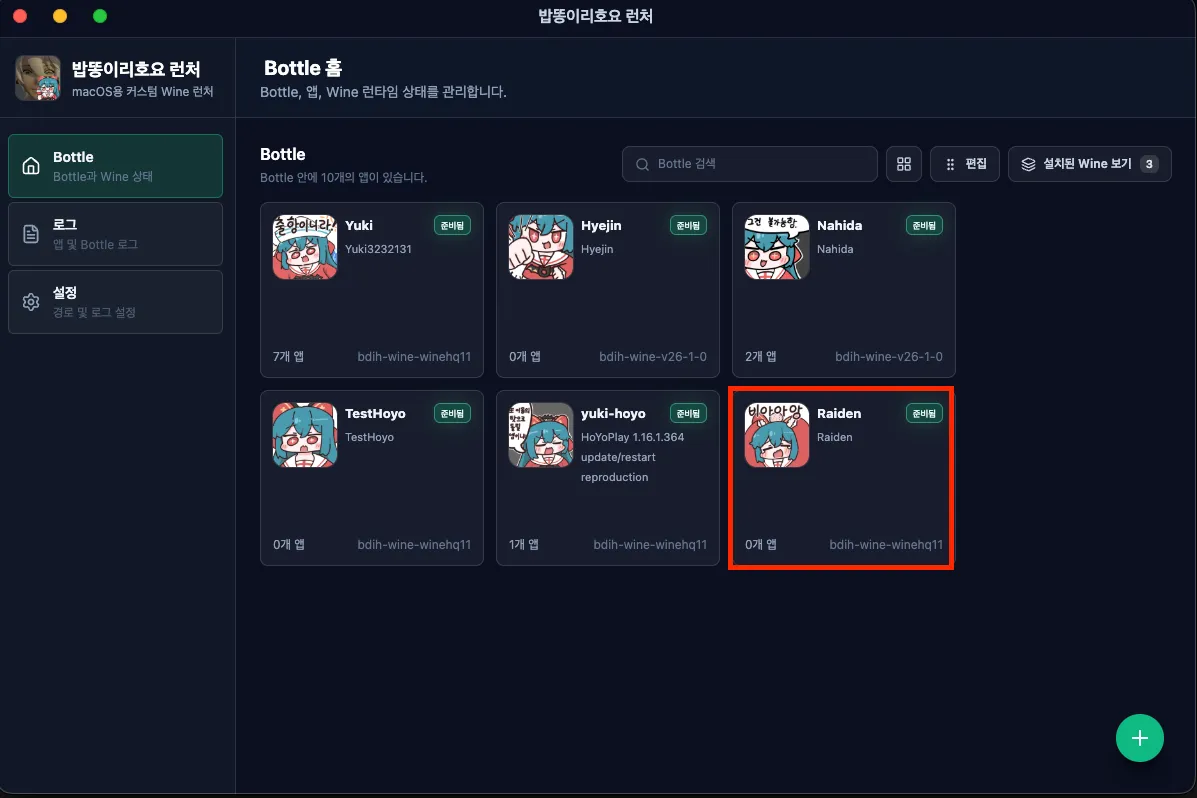
Open the Bottle you just created.
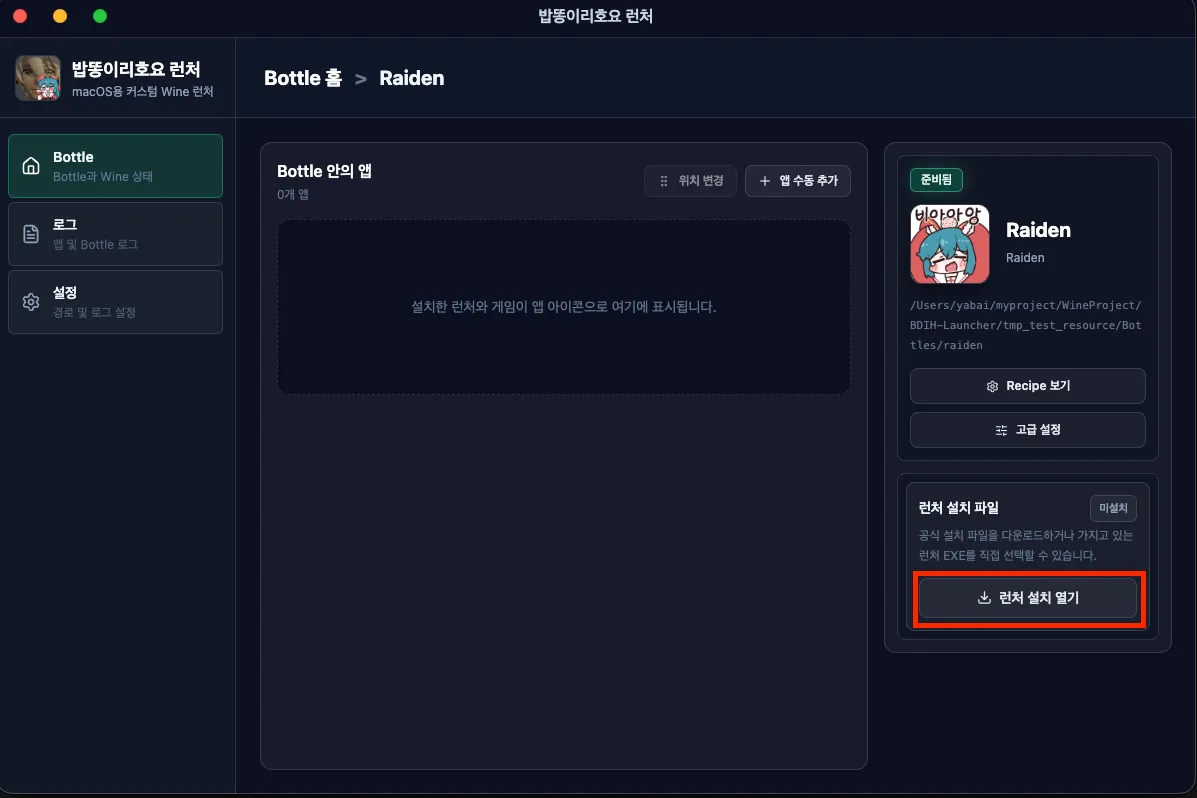
Inside the Bottle, click the launcher installation menu in the lower-right corner to install the HoyoPlay launcher.
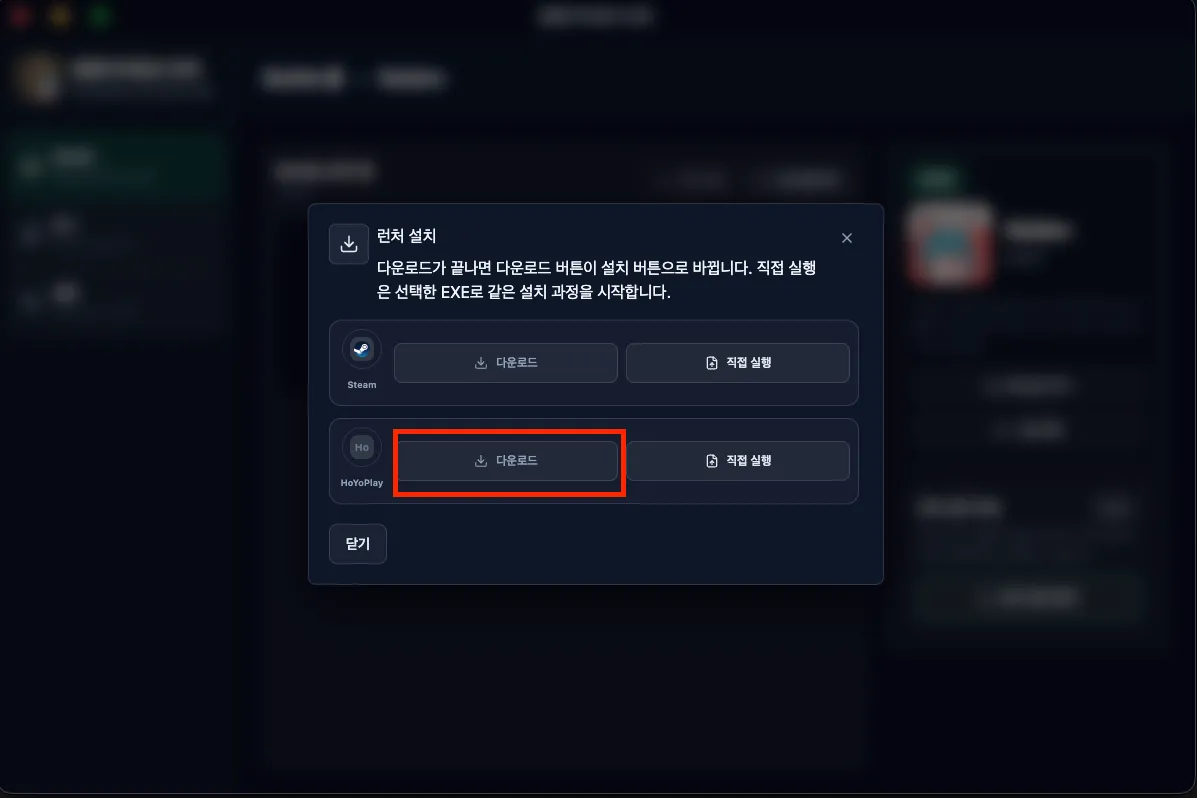
Because the launcher is not installed yet, download it first.
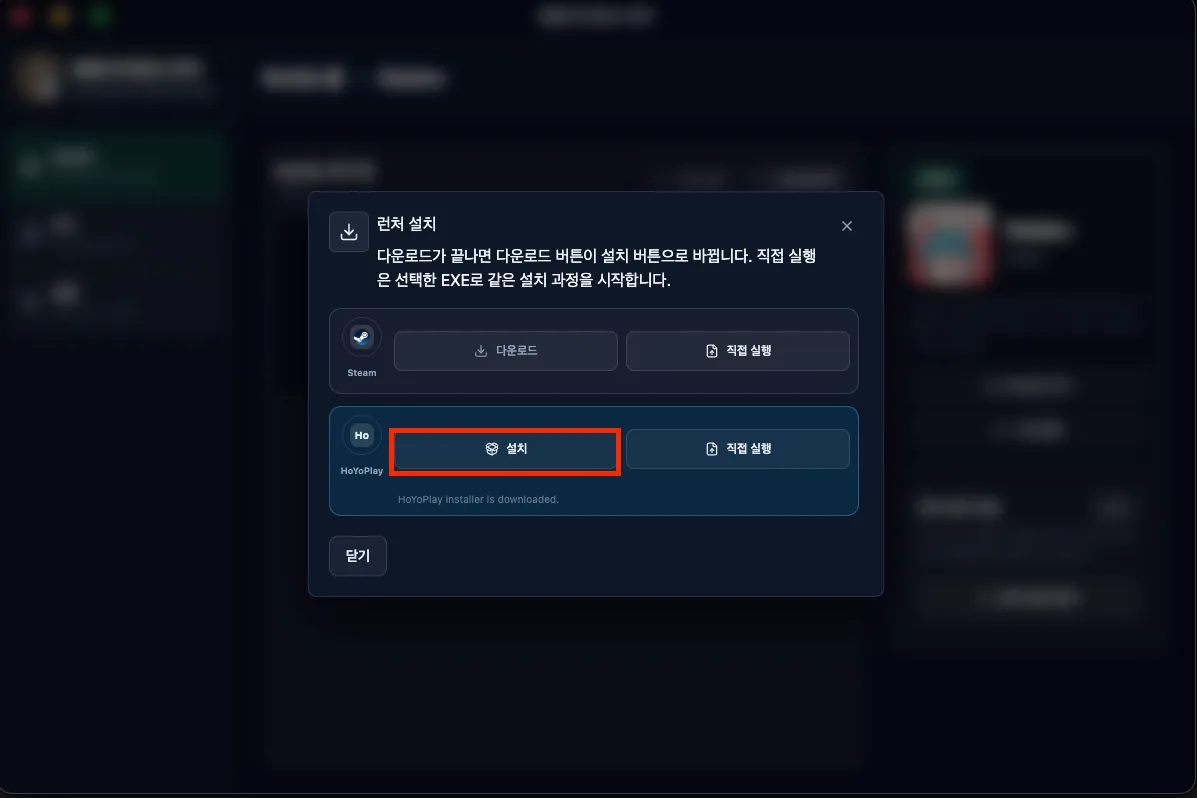
When the download finishes, click the install button.
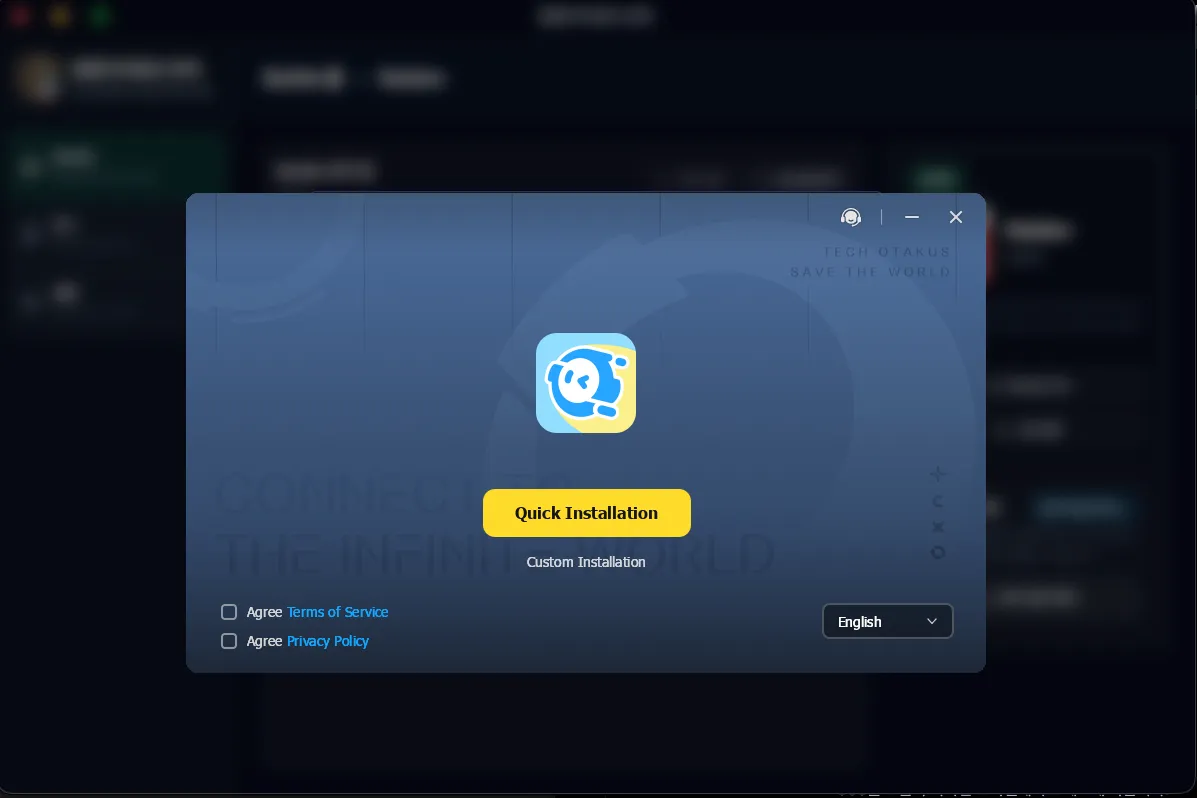
This takes a little time. After waiting, the HoyoPlay installer opens as shown. Choose Quick Installation and continue with the default options to finish installation.
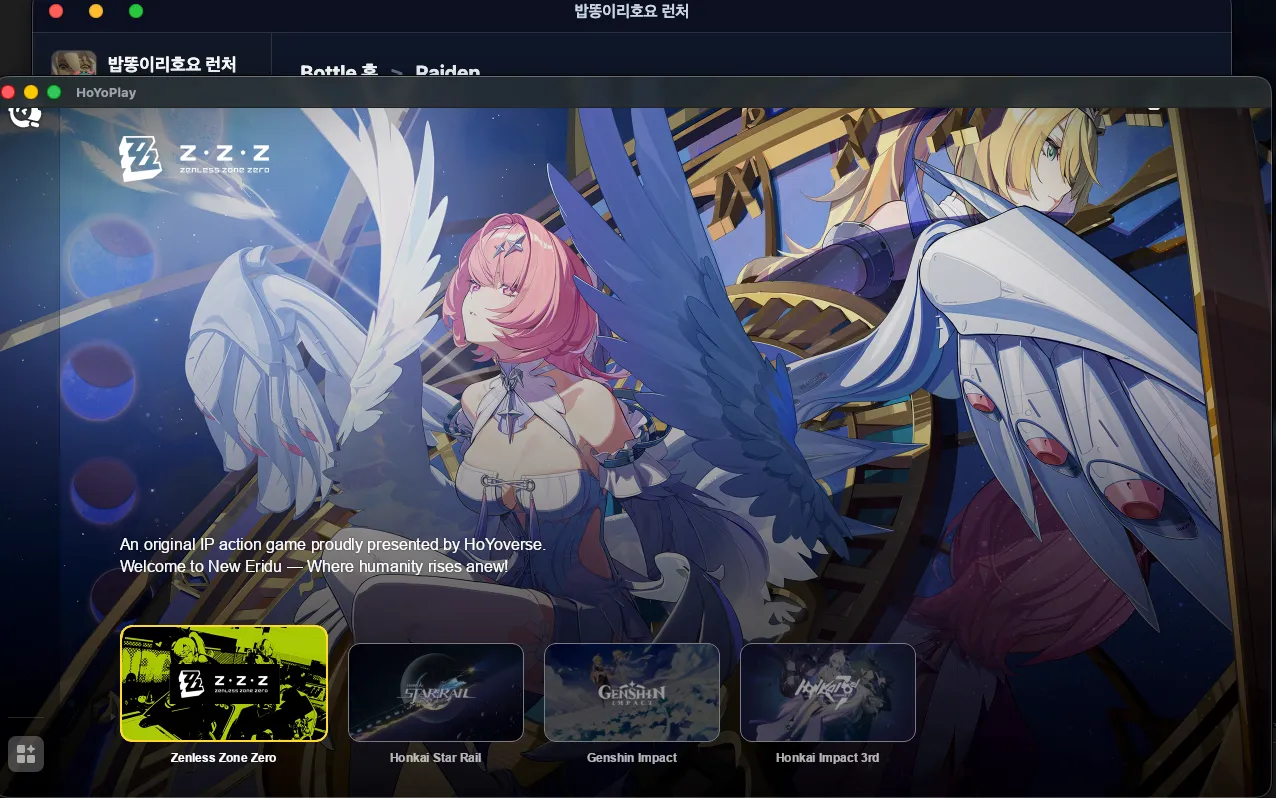
If installation completed correctly, the HoyoPlay launcher window should open automatically. Choose the game you want, install it, and run it.
If you delete a Bottle, the games inside it are deleted too. Because HoYoverse games are large, reinstalling them wastes a lot of time. For this reason, BDIH provides G: Drive. Games installed on G: Drive remain preserved unless you delete them yourself, so you can manage games independently from whether a Bottle is deleted.
You can change or manage the G: Drive save location in Settings > Wine.
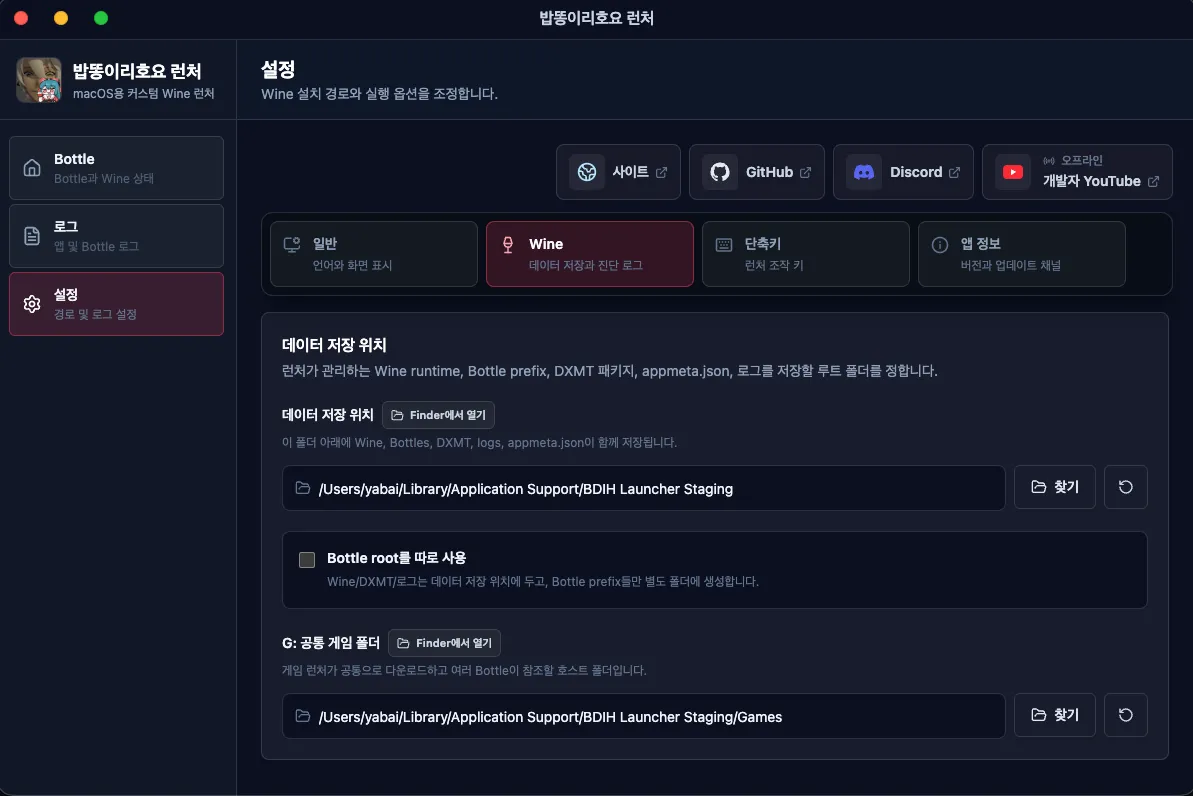
G: drive settings window
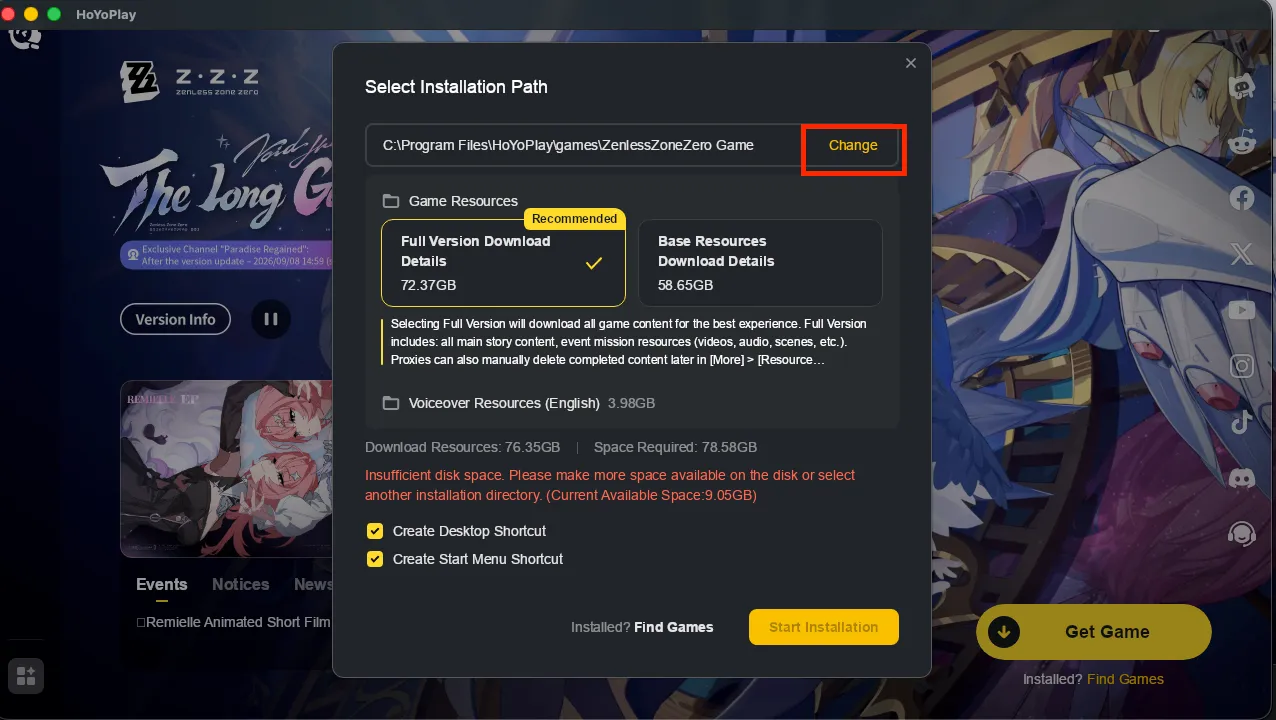
To install a game on G: Drive, click the install button for the game you want and click the button to change the installation location.
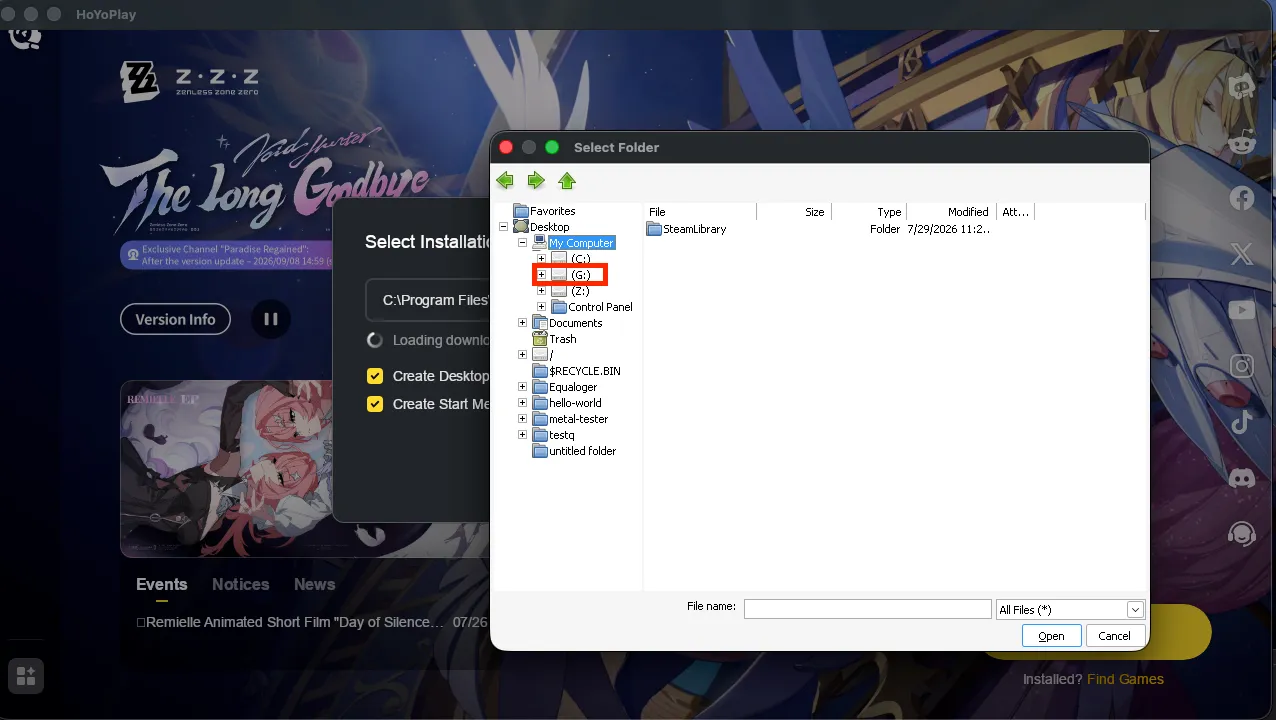
Select MyComputer > G: and install the game there, creating an appropriate folder as needed.
You cannot create the folder directly from this screen. This appears to be a Wine implementation issue, so create the needed folder separately at that location from settings.
The HoyoPlay launcher animation looks correct only when the frame rate is set to 60 fps.
This option is enabled by default, so you usually do not need to worry about it.
If the issue occurs, check whether Launch Options > DXMT > FPS Limit is set to 60 fps.
Msync can be enabled or disabled depending on your preference. In practice, it has not shown a large difference, but if the game feels slow, enabling it is recommended.
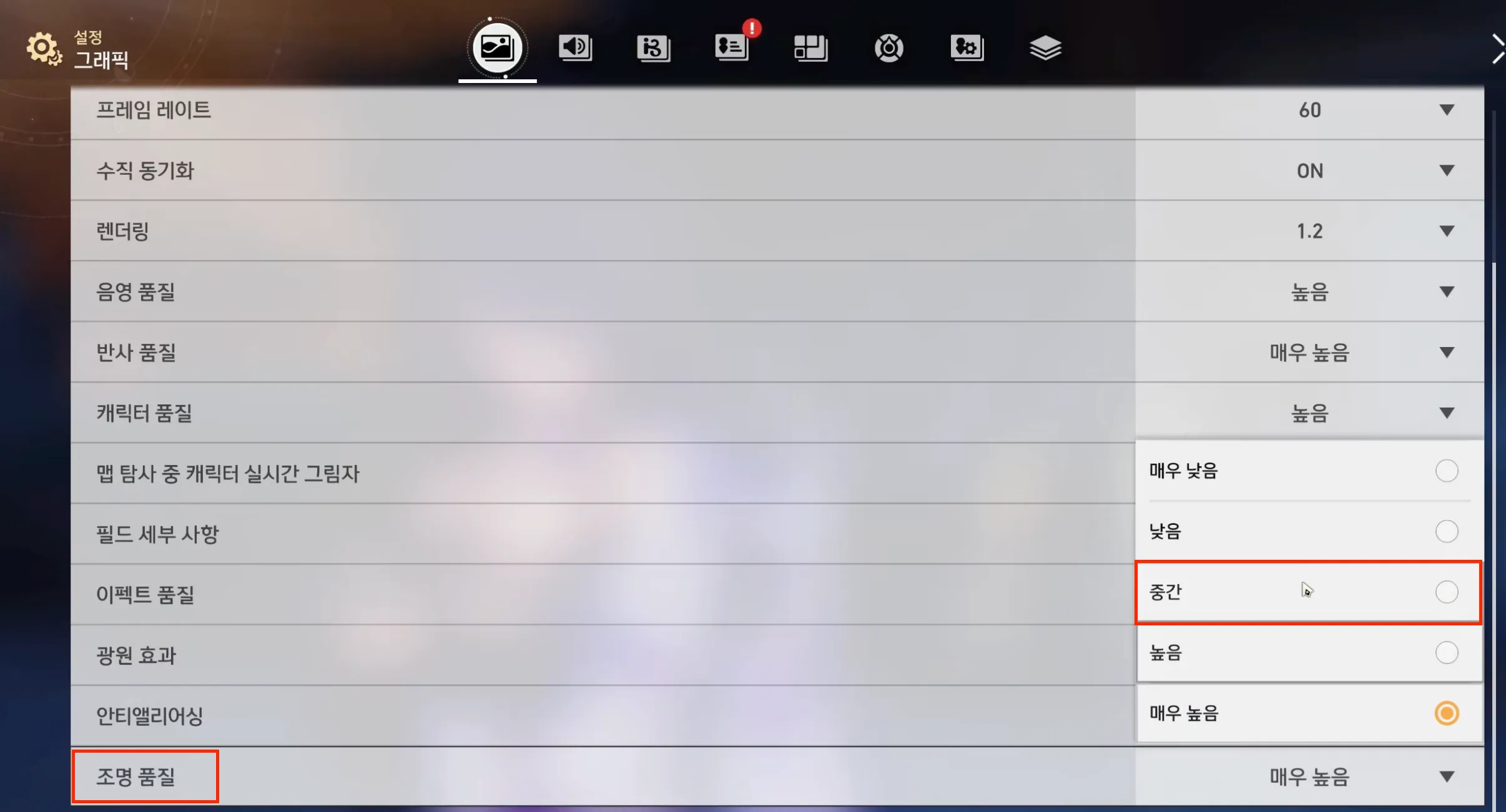
Some areas may show a flashing glitch. If this happens, lower Lighting Quality to Medium or below to resolve it.
Glitching bug example
Fix: set Lighting Quality to Medium or below
Result after changing the setting
Enabling Msync is recommended. You may experience very heavy stuttering. This is likely because the game uses a lot of dynamic loading, and Msync can help significantly with this kind of issue.
If the game is running, quit the games currently in use and configure the settings as shown below.
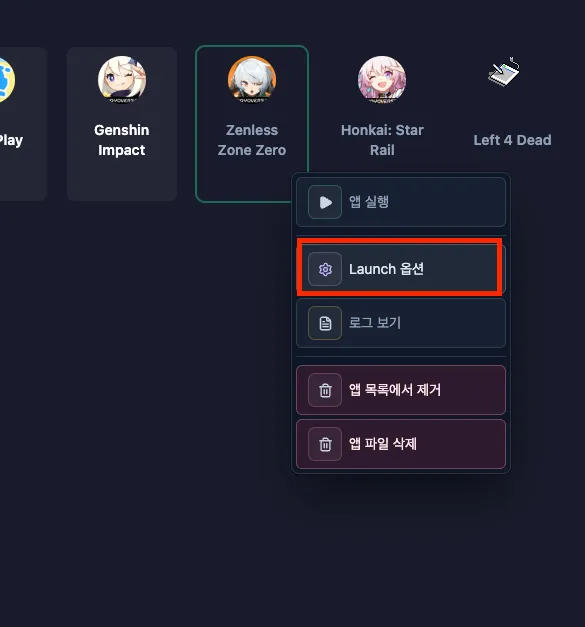
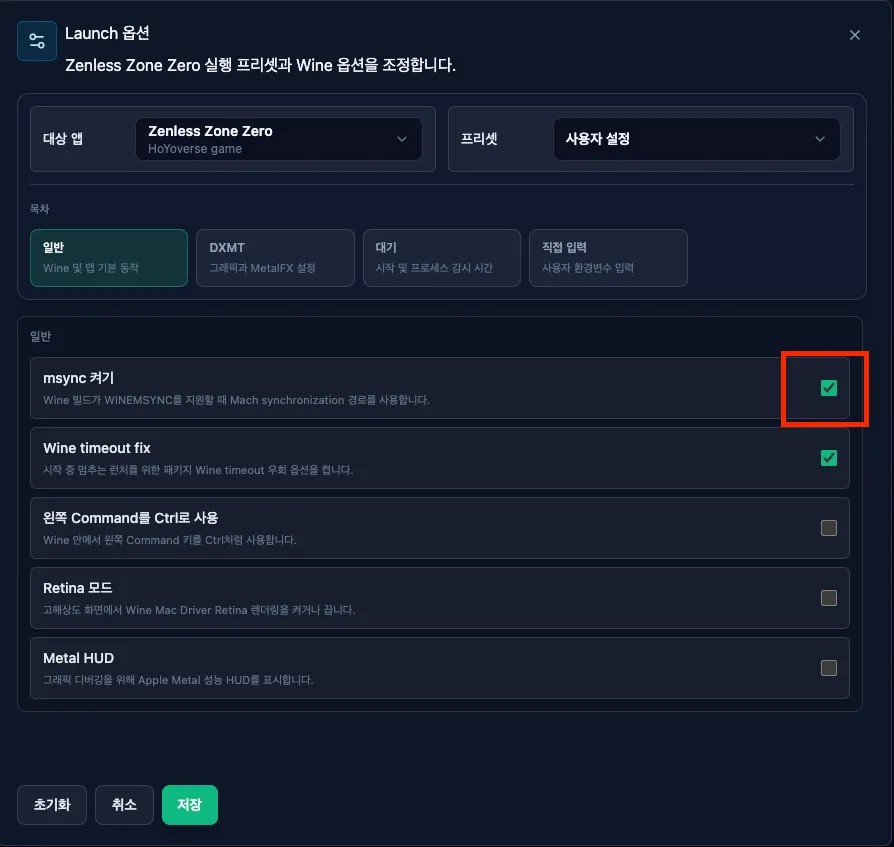
Now launch the game directly again.