Install the Bob-Ddong-Iri-Hoyo Launcher
Download the Launcher
Section titled “Download the Launcher”The Bob-Ddong-Iri-Hoyo launcher is distributed as a DMG file on the GitHub Releases page.
In most cases, choose the latest release shown at the top and download the .dmg or .zip file.
Version Channels
Section titled “Version Channels”The app is provided in three channels depending on stability and update cadence.
Installation Guide
Section titled “Installation Guide”Video installation guide
The steps below assume you downloaded a DMG file. Replace the example paths with your actual download location and file name.
1. Install Rosetta 2
Section titled “1. Install Rosetta 2”softwareupdate --install-rosetta --agree-to-licenseOpen Terminal and run the command. macOS will install Rosetta 2. If it is already installed, the command may finish without making any visible changes.
2. Remove the Quarantine Tag
Section titled “2. Remove the Quarantine Tag”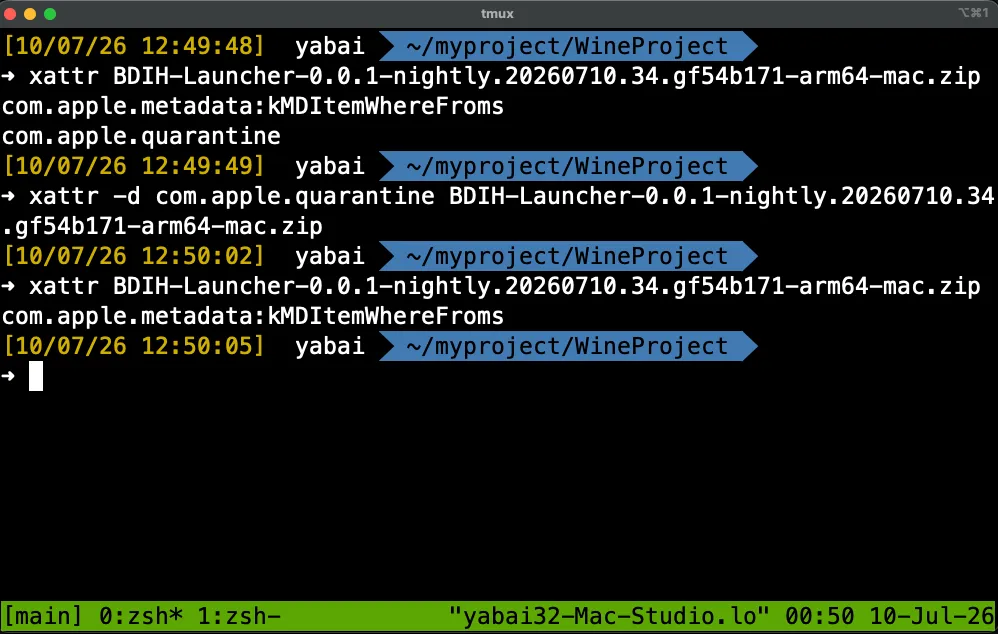
macOS adds a quarantine tag to files downloaded from the internet. The tag is used for security checks, but for a non-notarized app from a personal project, it can prevent the app from launching. Open Terminal, iTerm, or another terminal app and remove the quarantine tag from the downloaded DMG file with the command below.
xattr -d com.apple.quarantine {save-location}/{downloaded-file-name}.(dmg|zip|app)For example, if the file is in your Downloads folder, replace {save-location} with ~/Downloads.
If you see a message similar to No such xattr, it means the file does not have a quarantine tag to remove.
3. Install the Launcher
Section titled “3. Install the Launcher”After removing the quarantine tag, double-click the downloaded DMG file in Finder.
When the DMG is mounted, move the launcher app to the Applications folder as instructed, or follow the installation method provided by the distribution file.
The first time you launch the app, macOS may show another confirmation prompt. In that case, allow the app in System Settings under Privacy & Security, or Control-click the app in Finder and choose Open.
App Setup and Game Installation
Section titled “App Setup and Game Installation”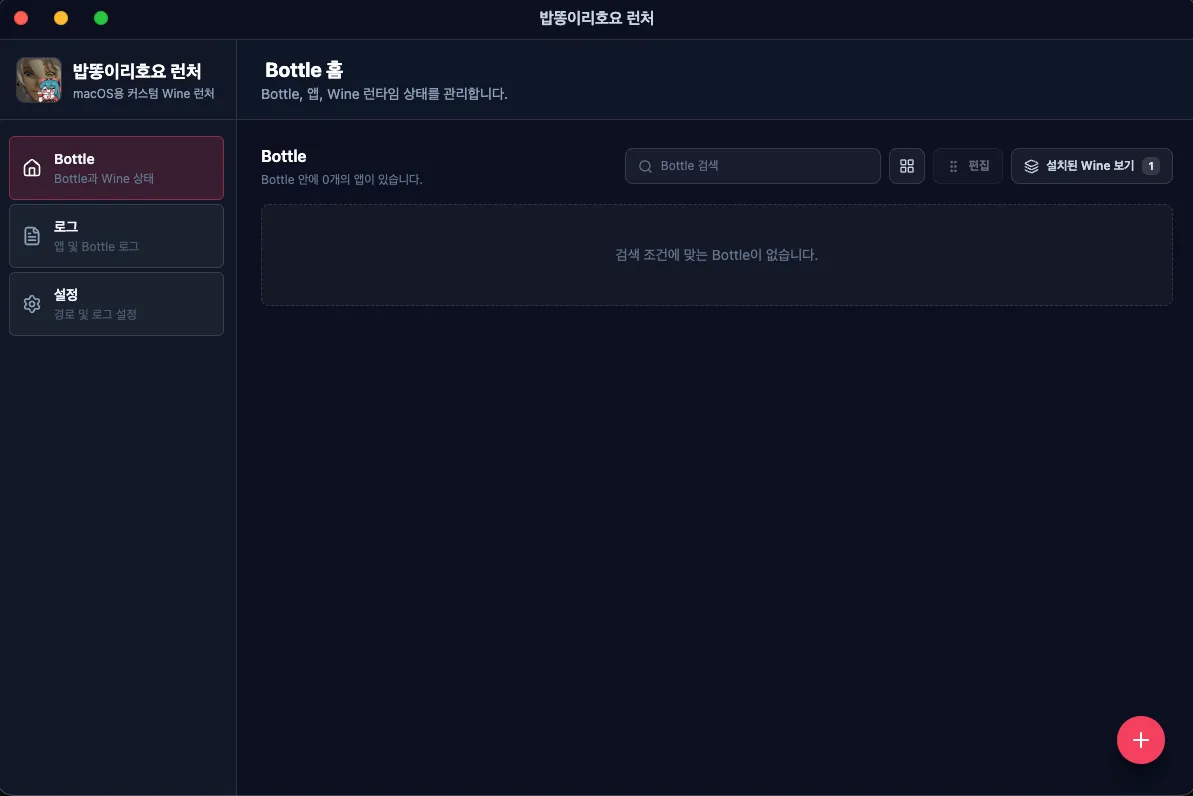
After launching the app and waiting for the initial loading to finish, the Bottle list screen appears. A Bottle is an isolated runtime environment used by Wine, where Windows programs and their related settings are stored separately.
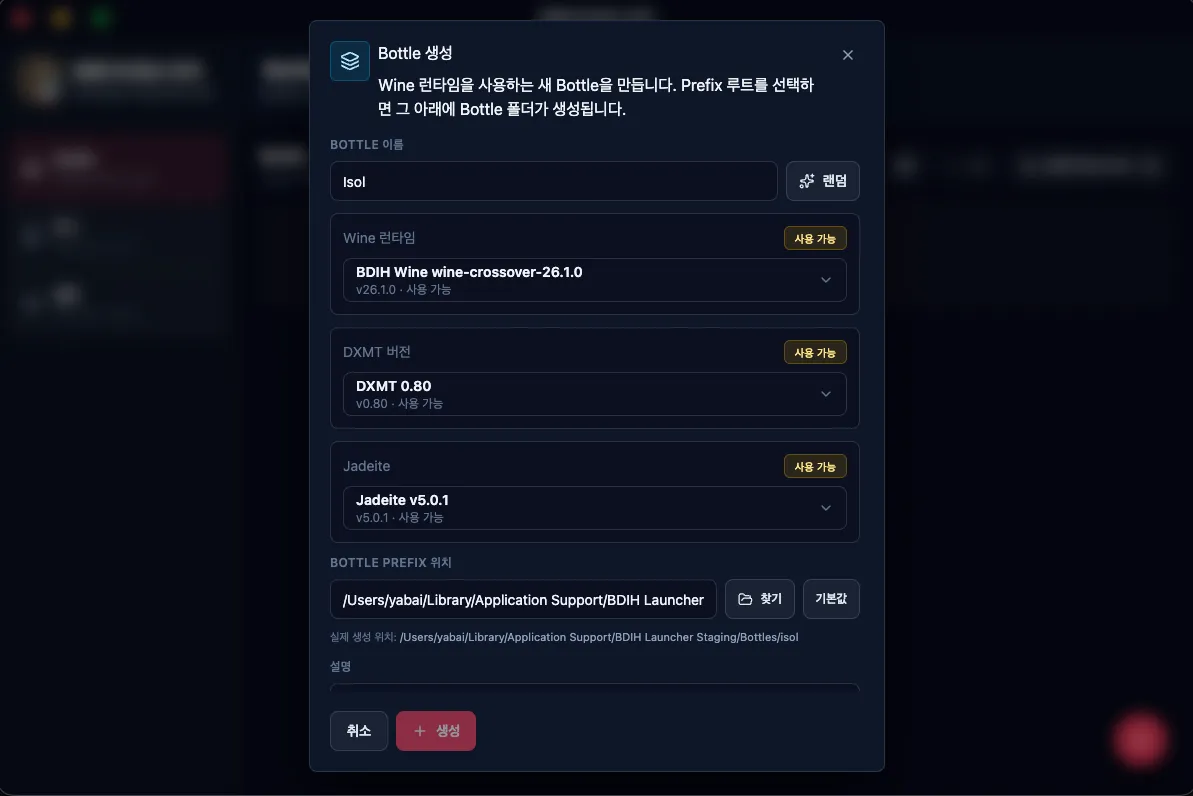
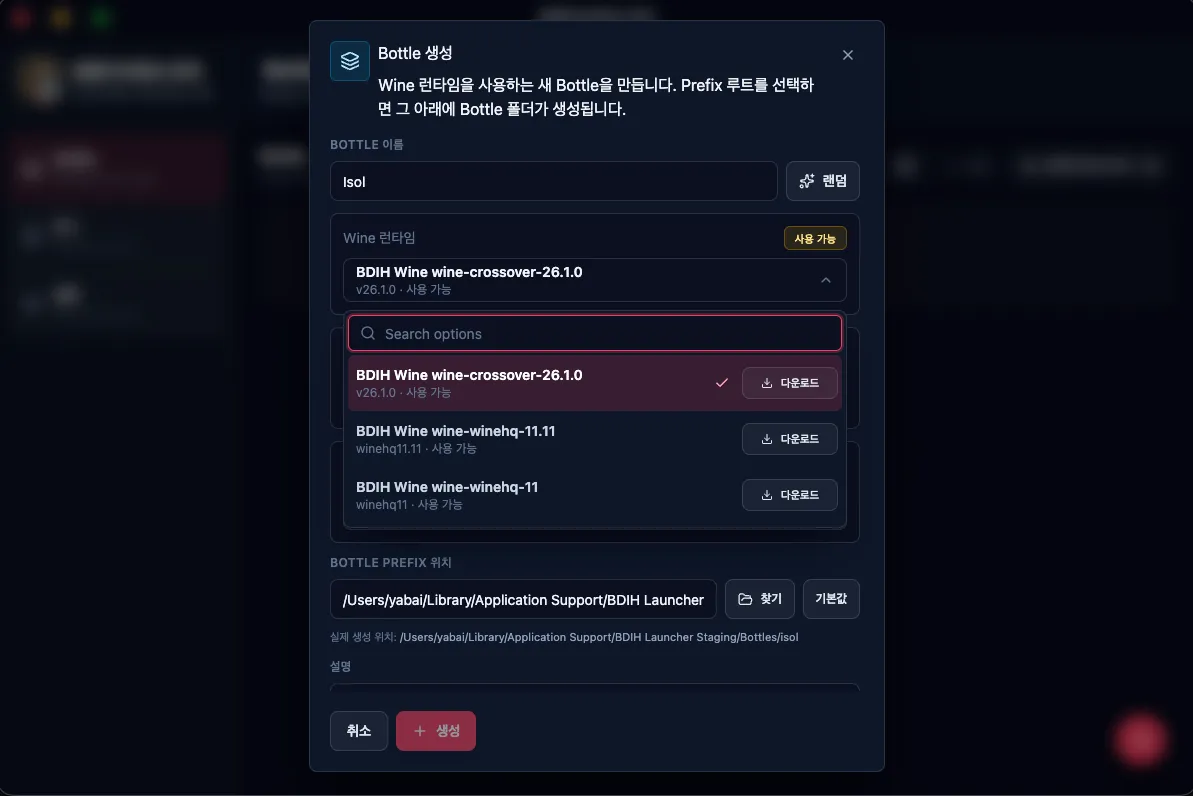
To create a new Bottle, click the + button in the lower-right corner, then choose the Wine version and DXMT version to use. If there is a recommended combination for a specific game, use that first and only switch versions when problems occur.