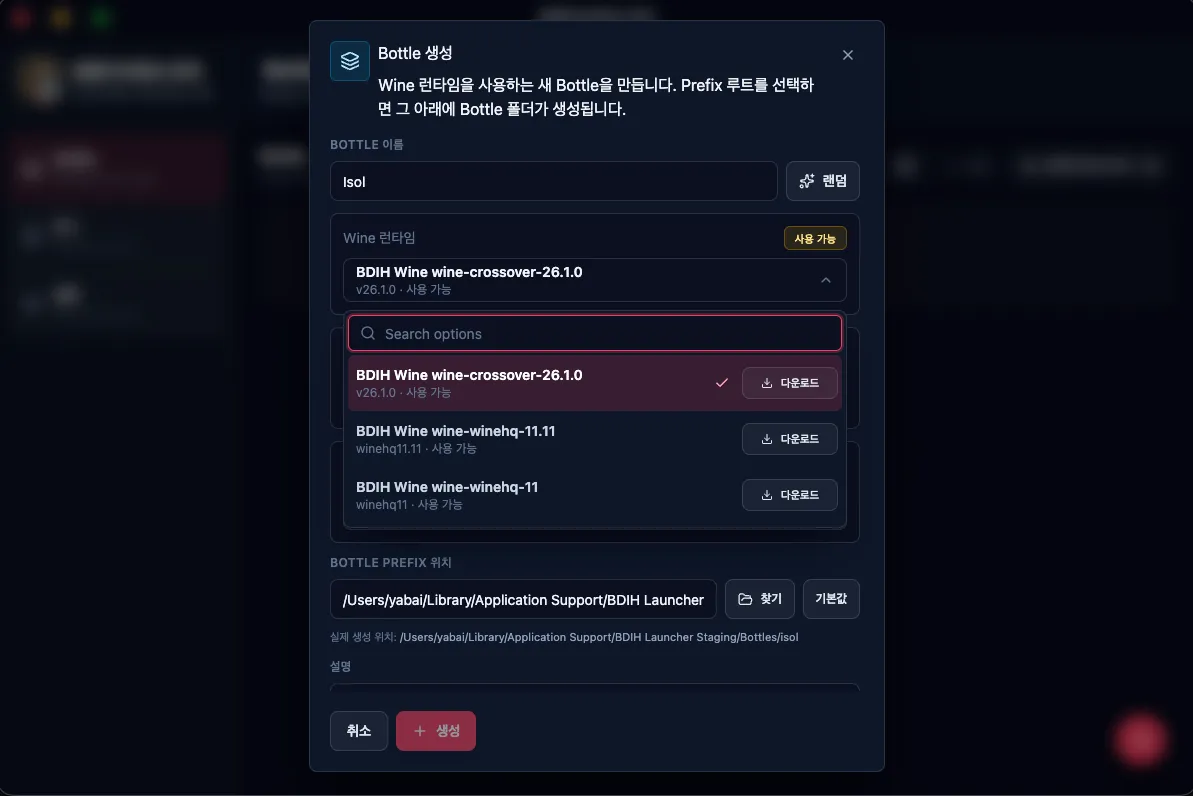
🟢 wine-crossover-26.1.0
This Wine build is only for Eternal Return. It is patched specifically for Eternal Return.
Eternal Return is compatible with every Wine build provided by BDIH. However, there may be small performance differences depending on the version you choose.
🟢 wine-crossover-26.1.0
This Wine build is only for Eternal Return. It is patched specifically for Eternal Return.
🟡 wine-winehq-11.11
Eternal Return is guaranteed to run, but it may be slower than other Wine builds. This appears to be related to timer changes inside Wine, which can cause more calls for the same behavior. If possible, try another Wine build first, and use this version to test whether it fits your system well.
🟢 wine-winehq-11
This Wine build is guaranteed to run Eternal Return. Unlike wine-crossover-26.1.0, it is a more general-purpose Wine build that can also run HoYoverse games.
After launching the app and waiting for the initial loading to finish, the Bottle list screen appears. A Bottle is an isolated runtime environment used by Wine, where Windows programs and their related settings are stored separately.
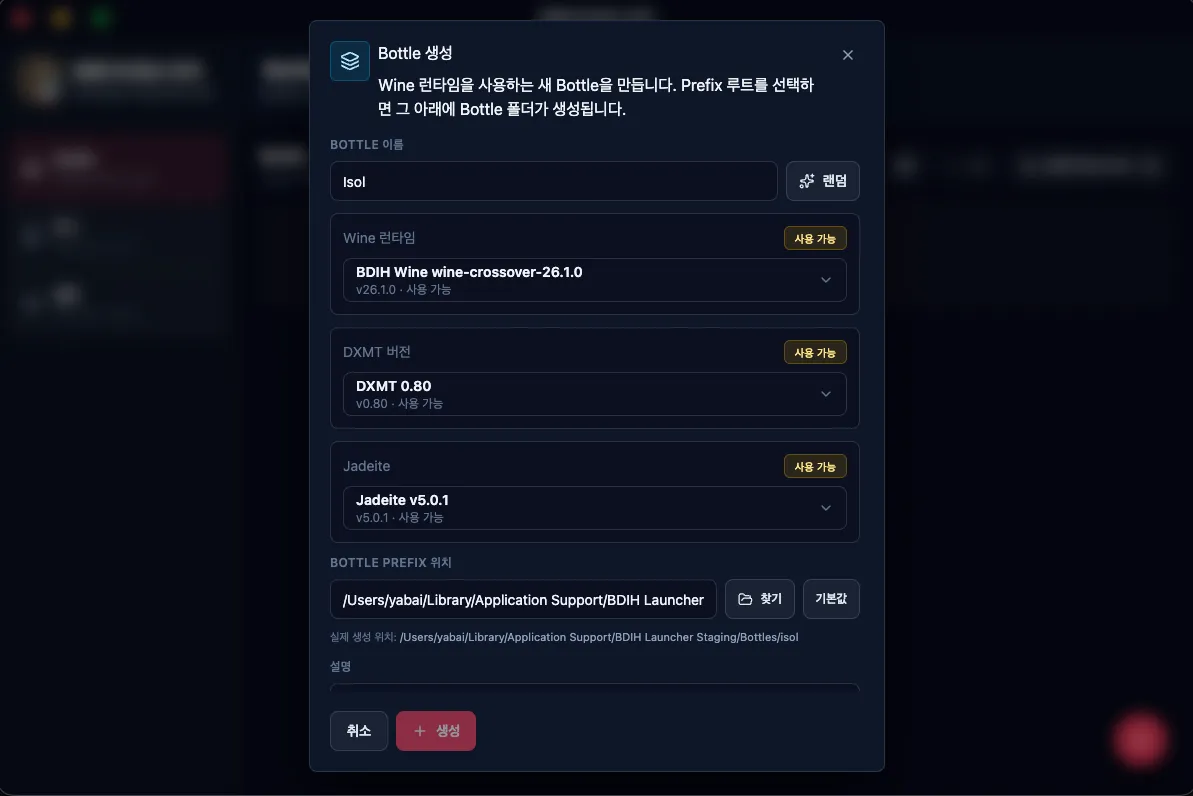
To create a new Bottle, click the + button in the lower-right corner, then choose the Wine version and DXMT version to use. If there is a recommended combination for a specific game, use that first and only switch versions when problems occur.
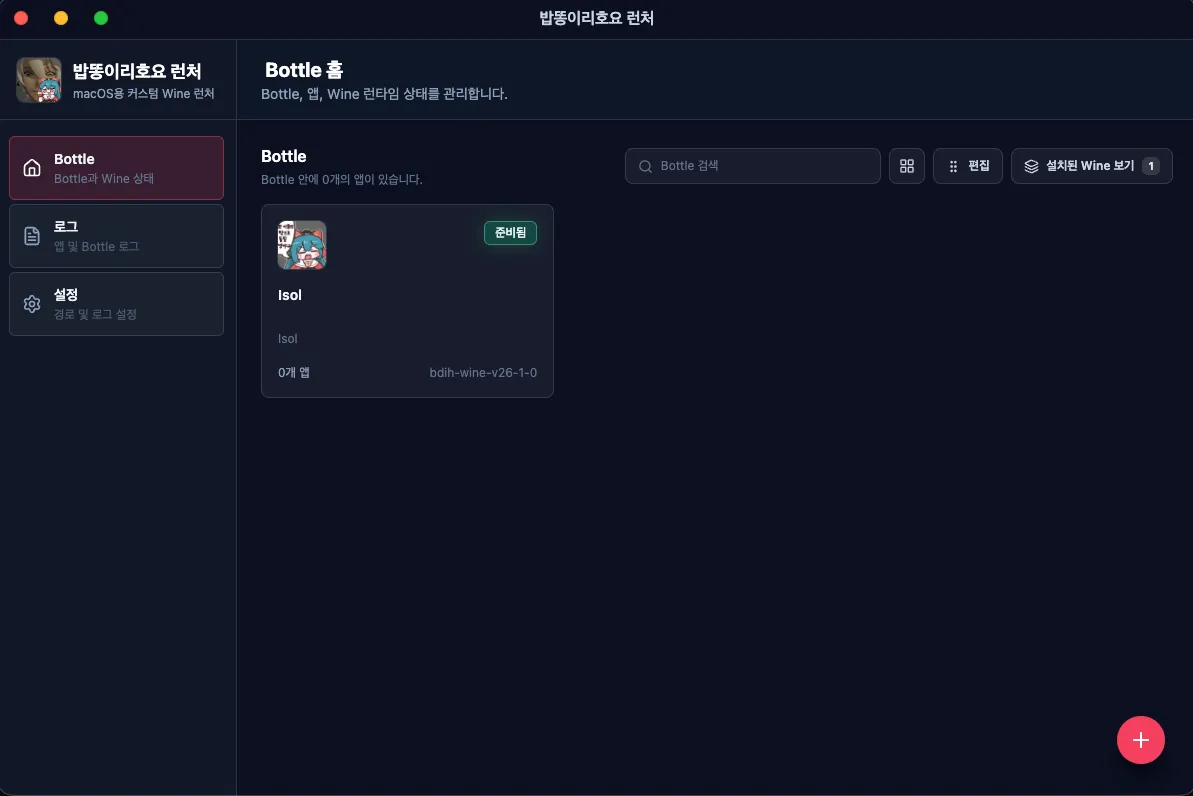
The Bottle has been created.
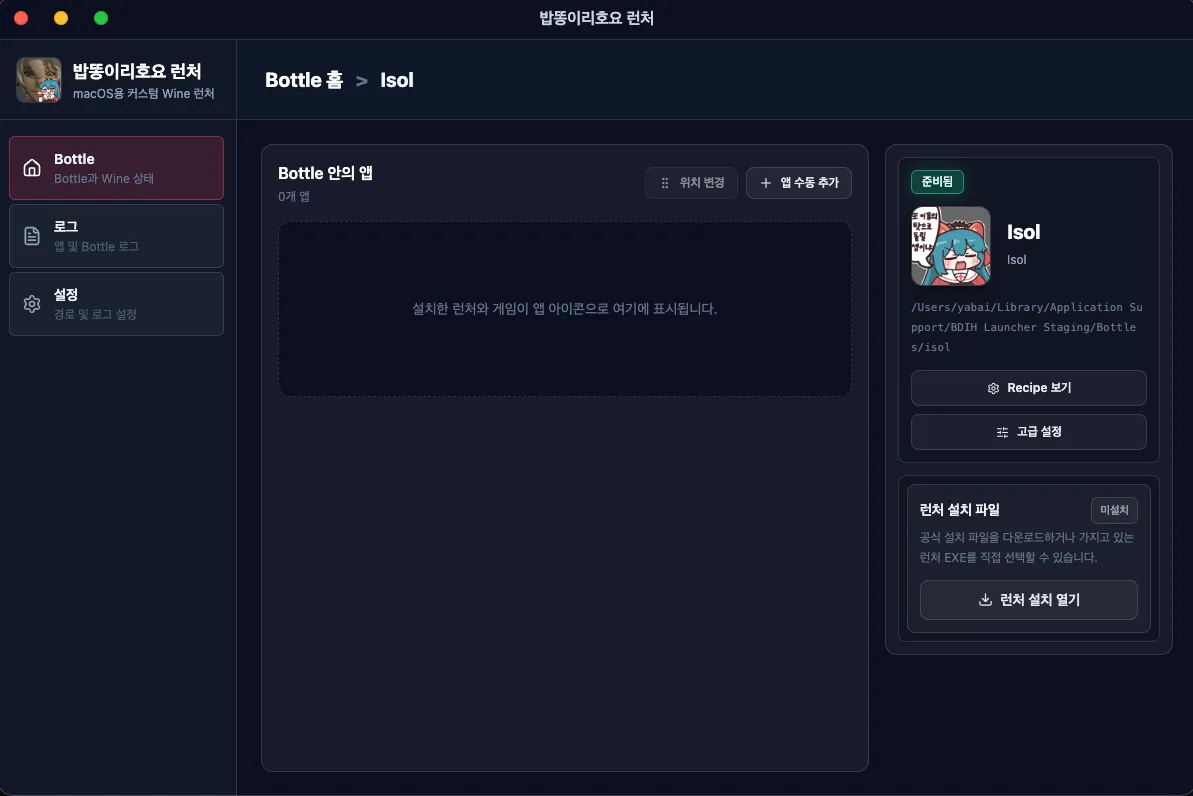
Click the Bottle to open the following screen.
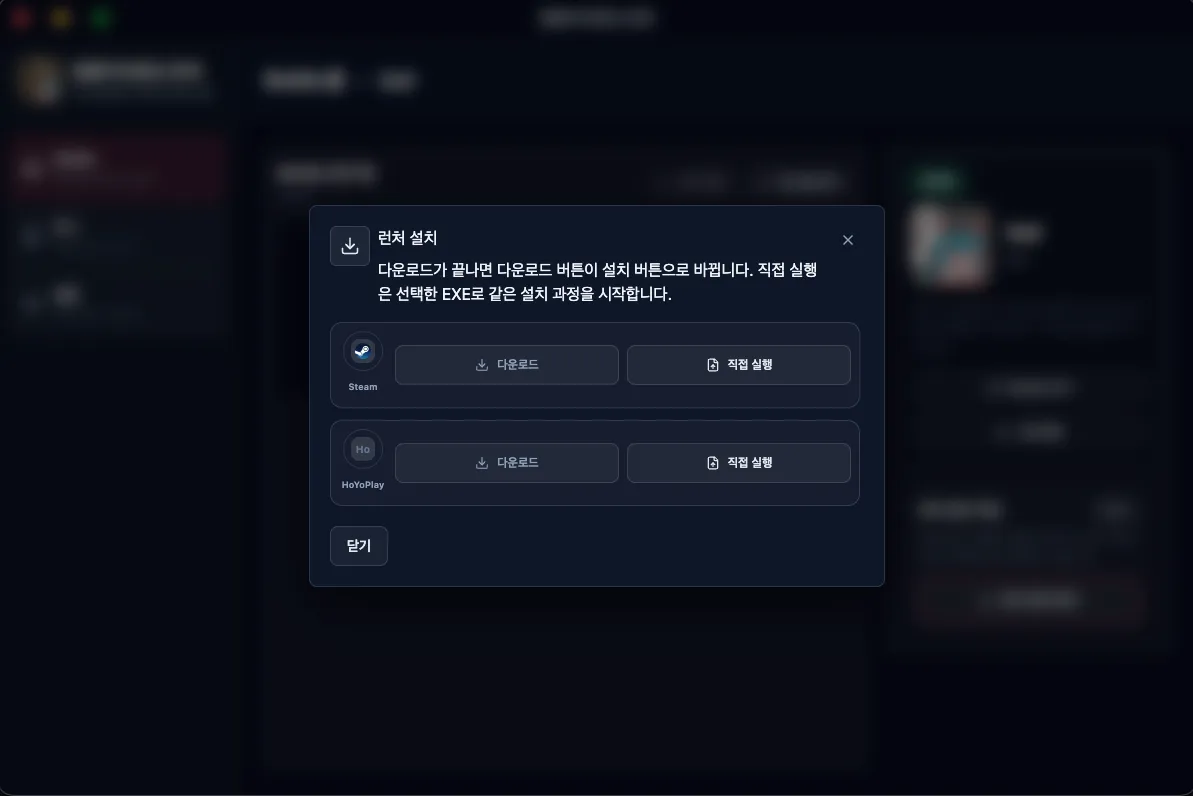
Click the launcher installation menu to see the Steam and HoyoPlay installation list. Download the program you want.
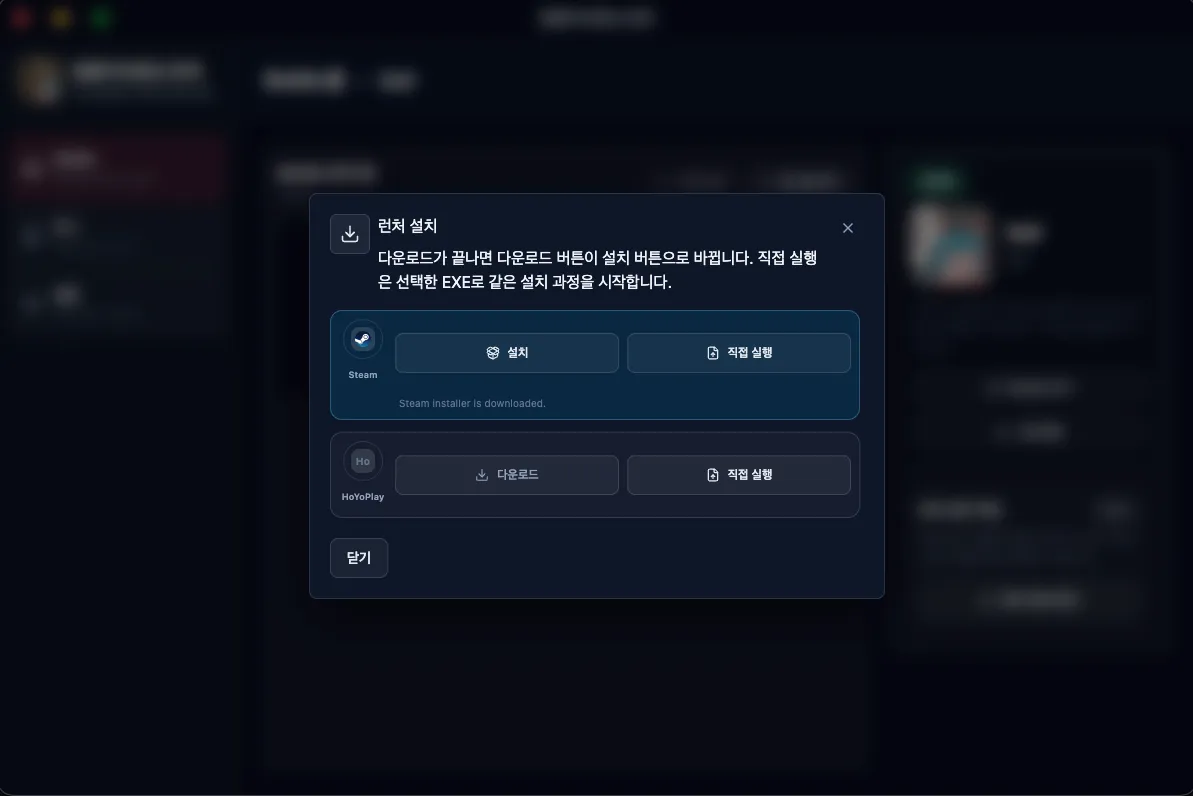
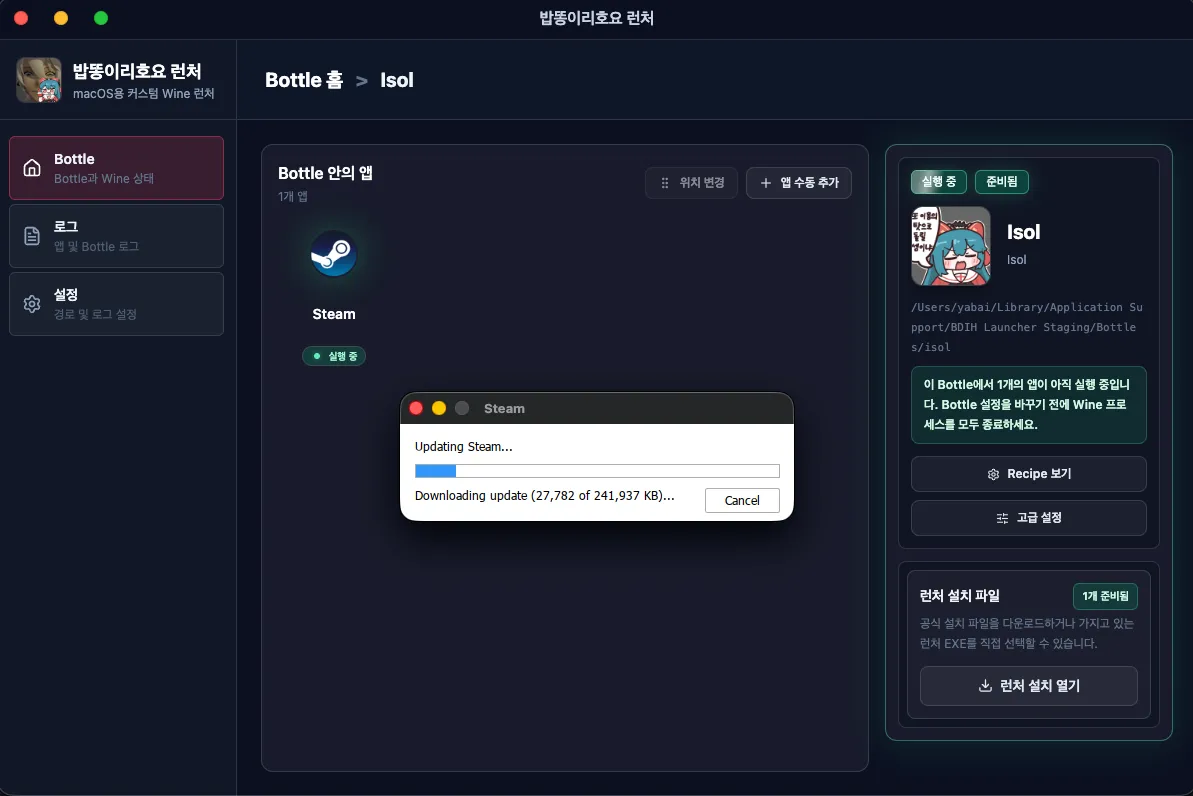
When the download finishes, the download button changes into an install button.
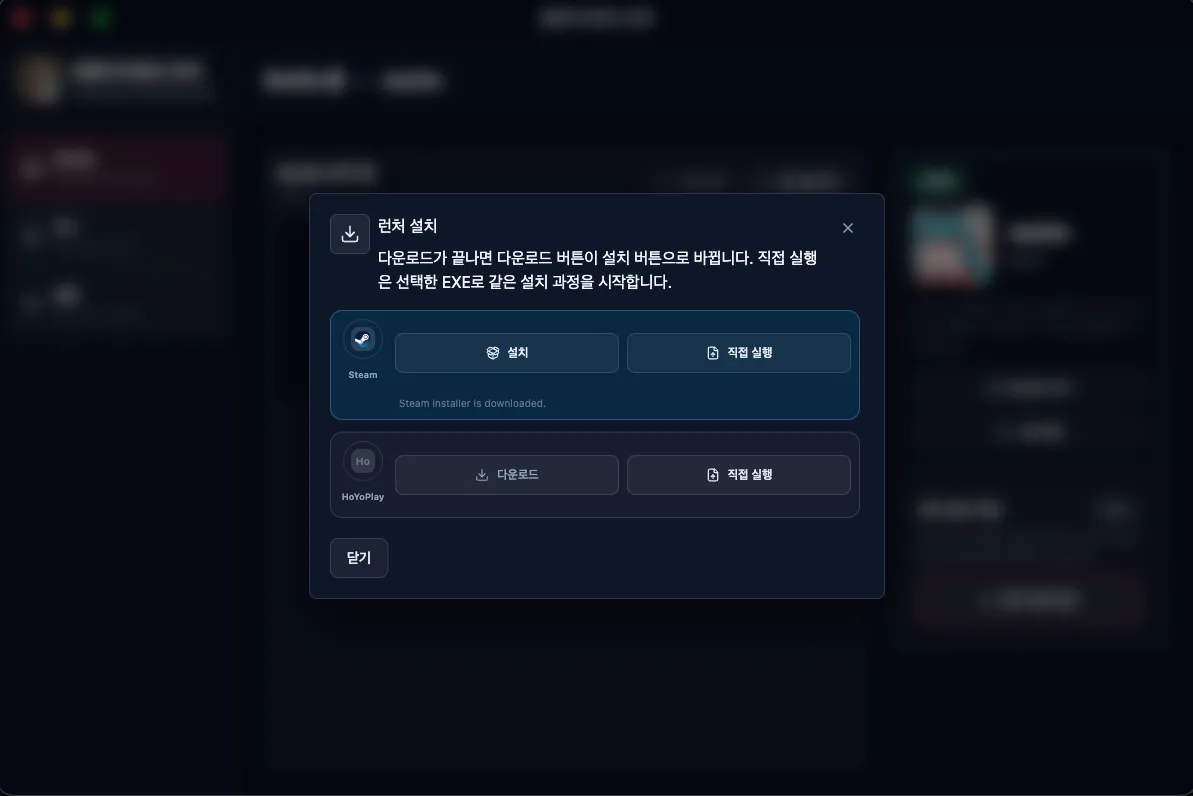
Click install and wait for a moment.
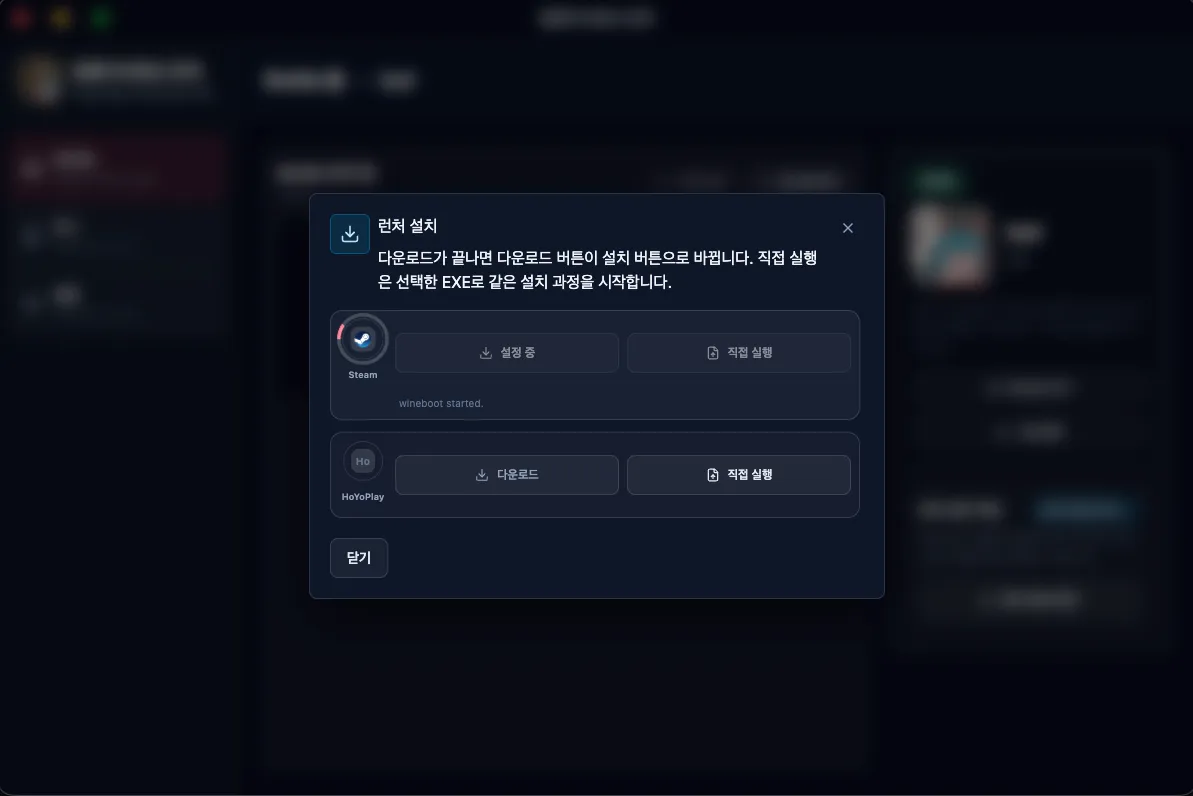
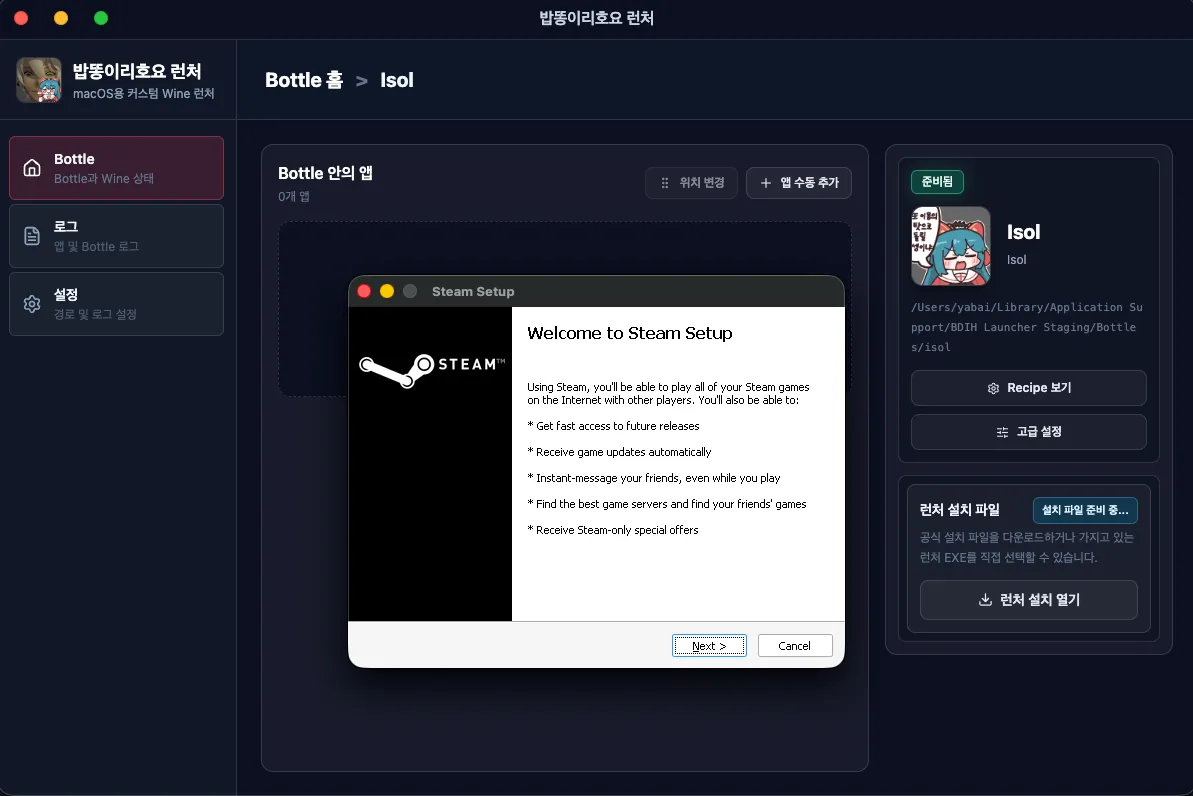
When the Steam installer opens, click Next and proceed with the installation.
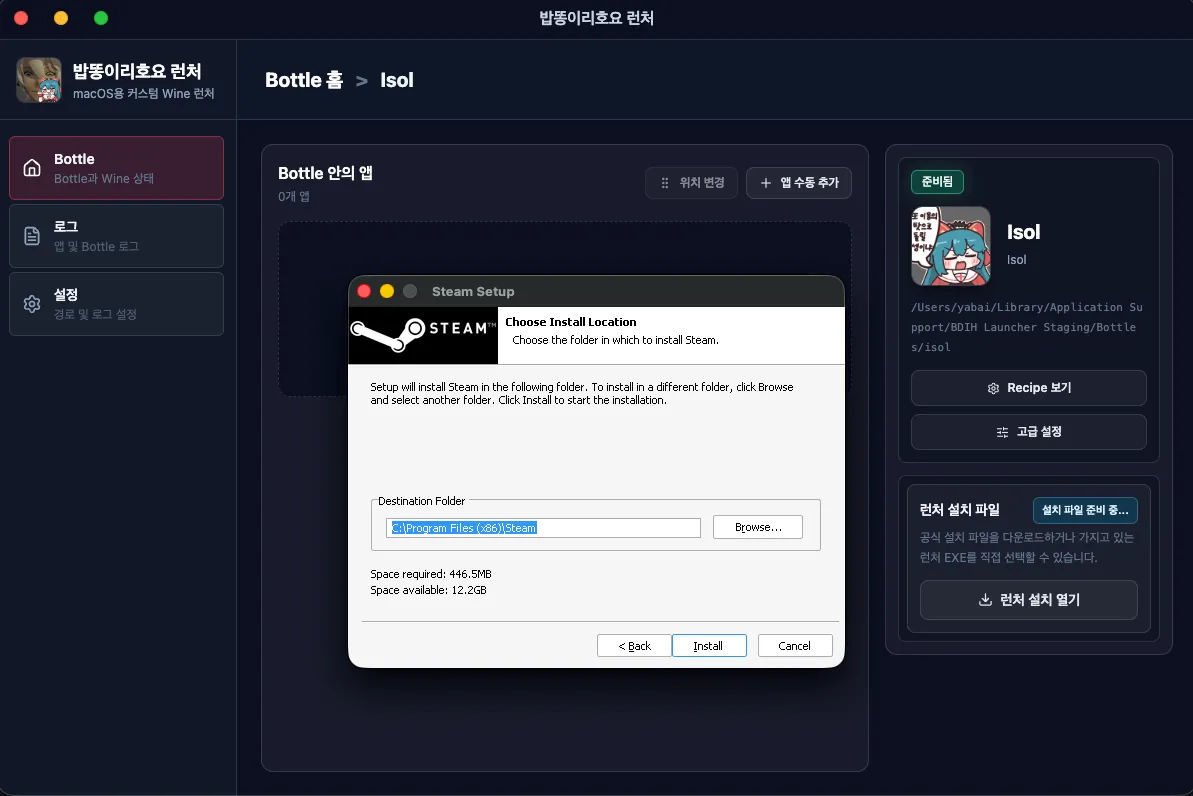
You can keep the default installation location.
After installation completes, the Steam login screen appears.
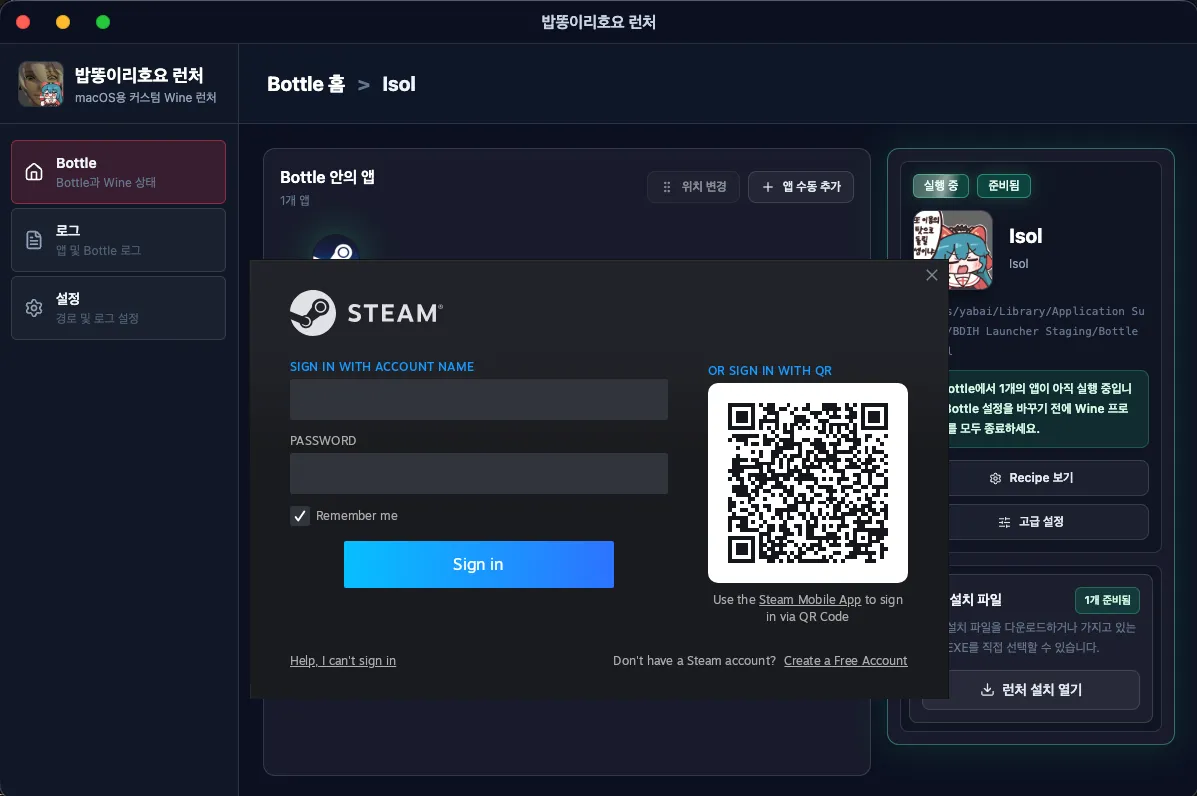
Now log in, install Eternal Return just as you would on Windows, and play.
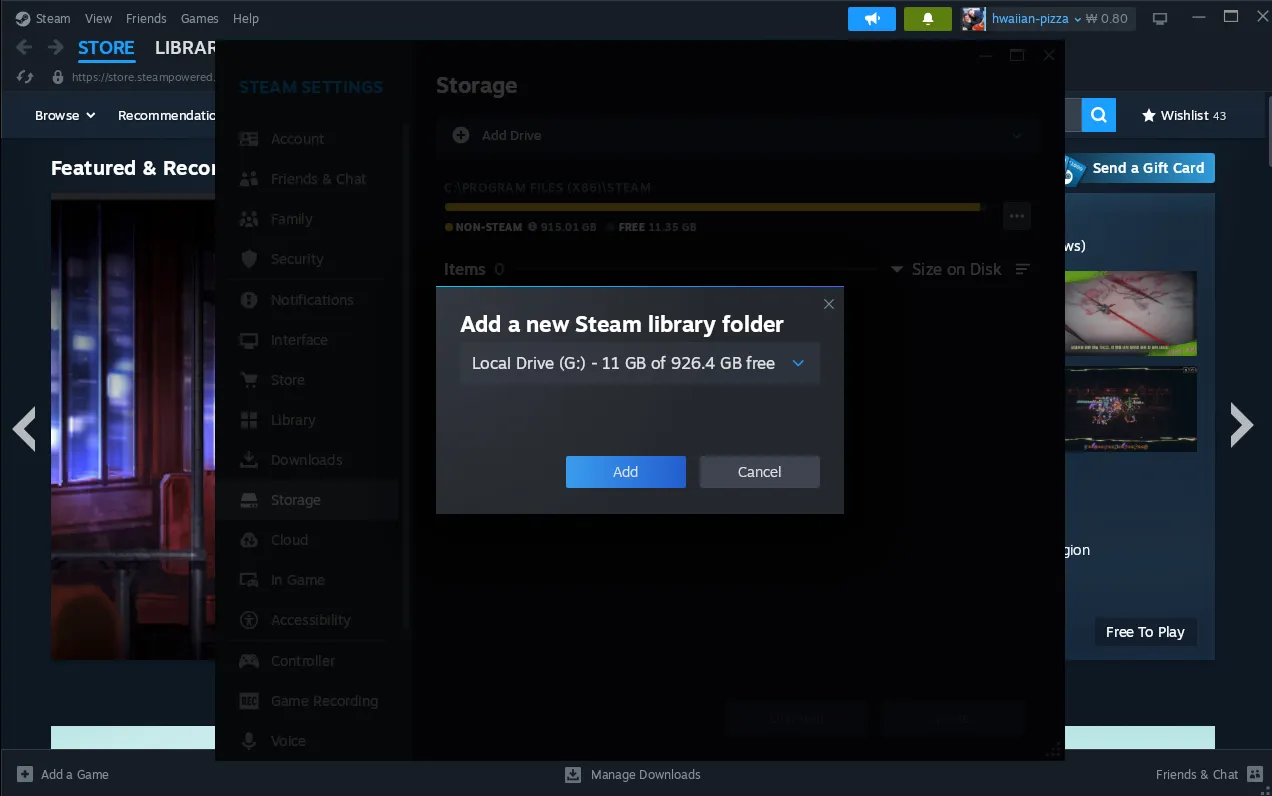
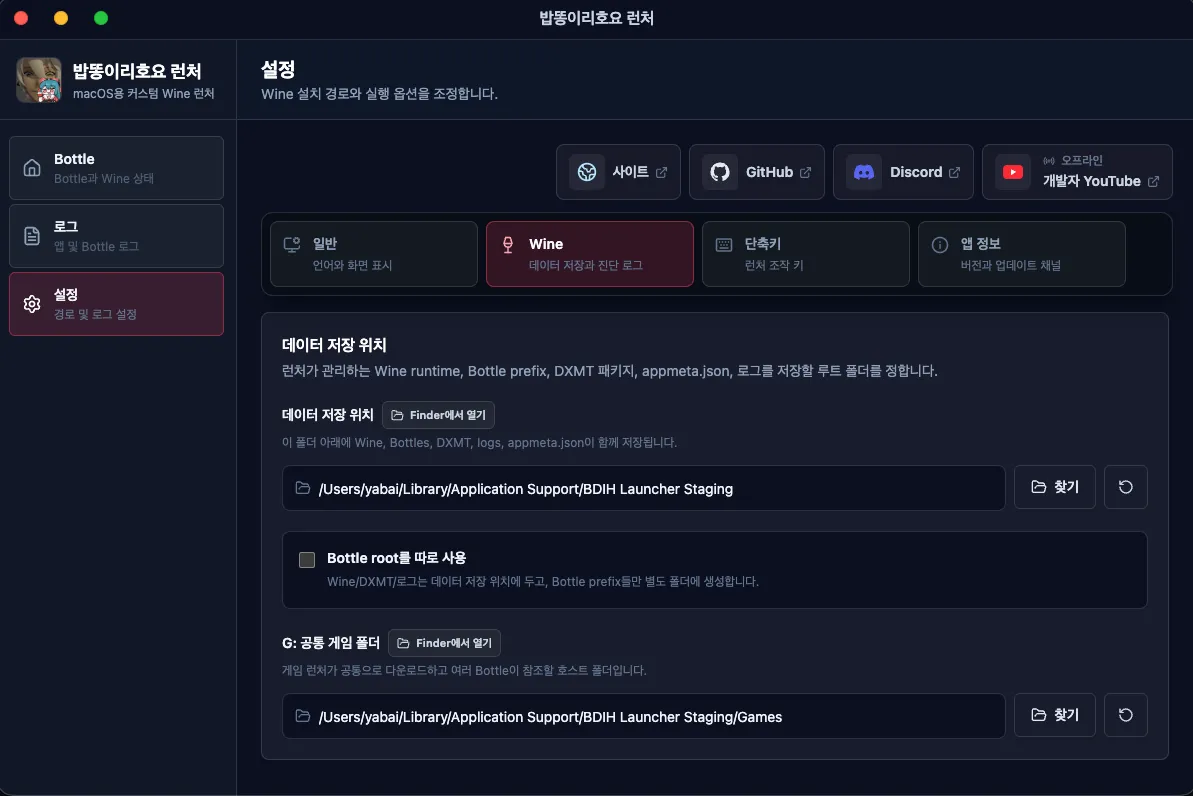
The Bob-Ddong-Iri-Hoyo launcher provides a G: drive interface for storing large games. In Steam settings, you can add the G: drive through Add drive and move your Steam games there. This lets you keep downloaded Steam games even if you delete an existing Bottle.
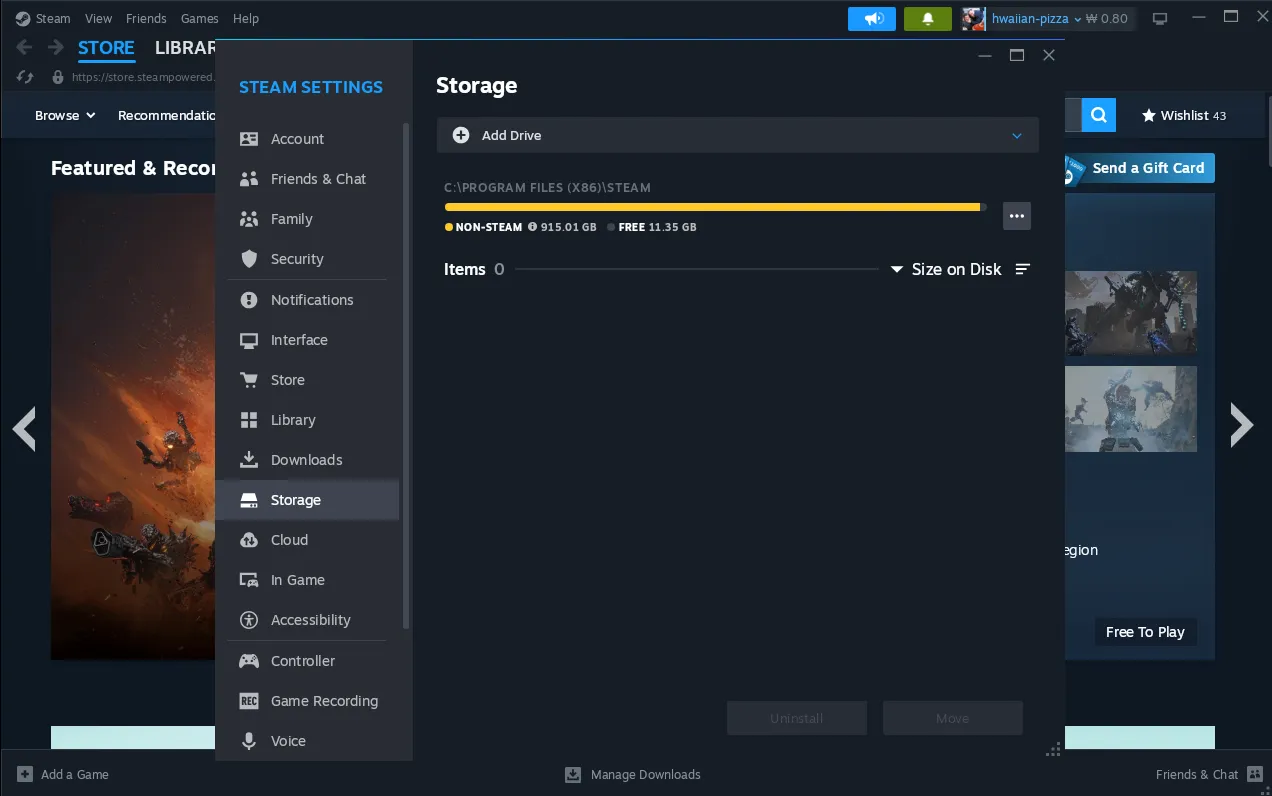
In Steam settings, add the G: drive from storage using Add drive.
You can adjust the G: Drive location in the Bob-Ddong-Iri-Hoyo launcher settings. Choose your preferred location or use the default path provided by the launcher.
Msync can be enabled or disabled at your discretion. It may help improve performance.
After the first Steam installation, Msync is not enabled by default. You must enable it manually. For Msync options, you need to decide whether to apply them to Steam or Eternal Return, and the first Wine process that starts matters. If you launch Eternal Return after opening the Steam app, apply the Msync option to Steam. If you launch Eternal Return directly from the Bottle, apply it directly to Eternal Return.
If you are unsure and simply want to enable Msync, apply the Msync option to both apps.
Right-click the app where you want to use Msync and open Launch options.
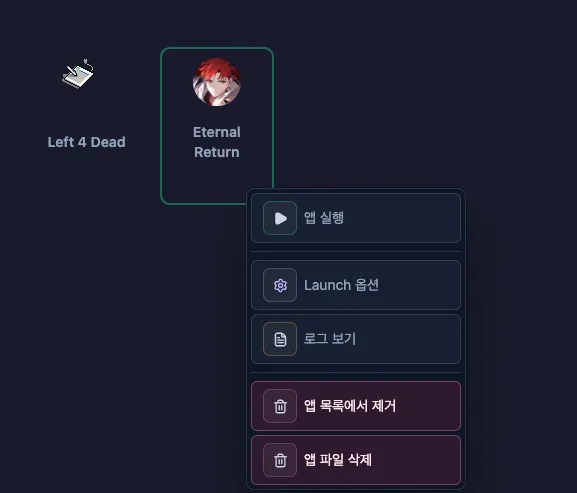
Open the Launch options for Eternal Return.
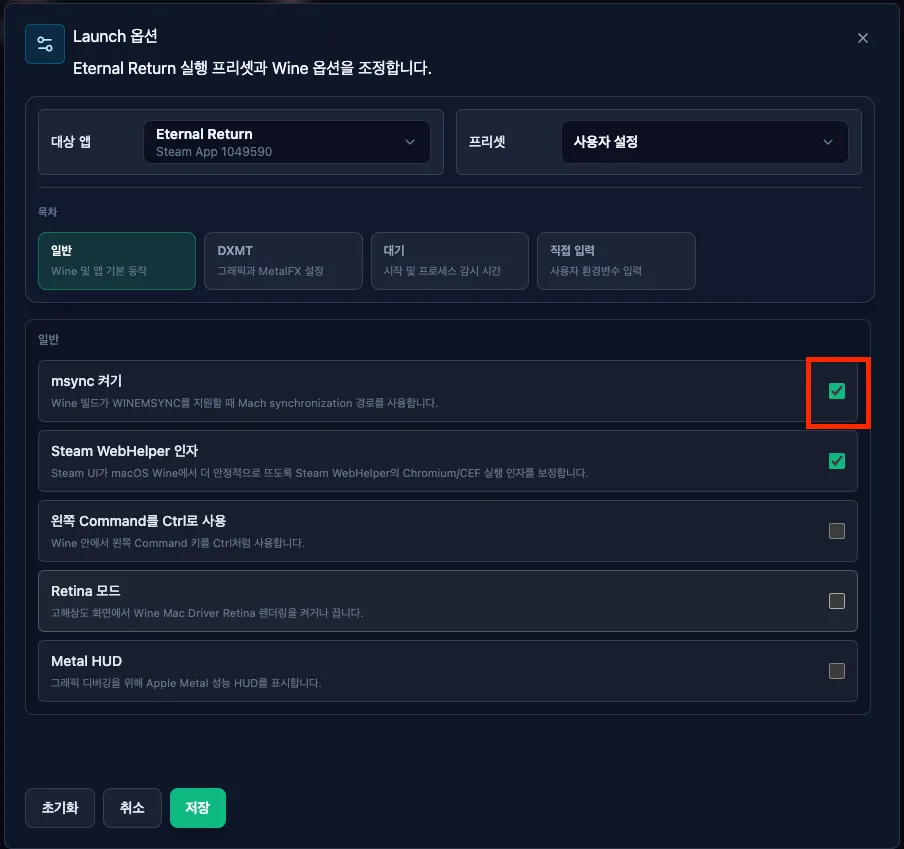
Select Enable Msync under General and save.
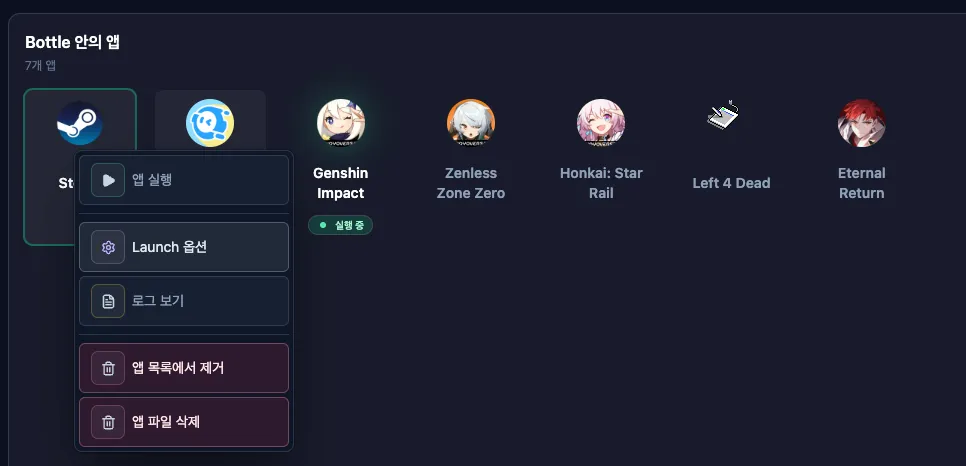
As mentioned earlier, open Steam’s Launch options too and apply the same option.
This option change only takes effect after restarting Steam or Eternal Return if they are already running in the Bottle.